


Vsware APP


For Android devices: Visit the Google Play Store on your device and search for ‘VSware’
For iOS devices (Apple): Visit the App Store on your device and search for ‘VSware
- Tap ‘Install‘
- If you have already downloaded the app and an update is available, you can tap ‘Update‘ at this stage.
- Once the app is on your mobile phone, start typing the name of your school, (St Nathy’s College) then select it from the dropdown list when it appears.
When searching for the school, you can type vsware.ie.stnathys which will take you to the screen that states ‘Log in to St. Nathy’s College’.
- In order to access the VSware App, you will need a username and password.
- To receive your username contact the School Office at (094) 9860010.
- The school will require a mobile number registered with the school for creating your account.
- The username will be sent to you via SMS text message to the mobile phone number you provided to the school.
Once you have received a username you will then need to create a password.
To log into your new account, go to the login screen and click Reset Password.
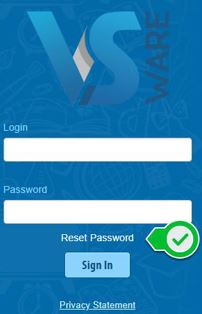
This brings you to the ‘Reset Password’ screen
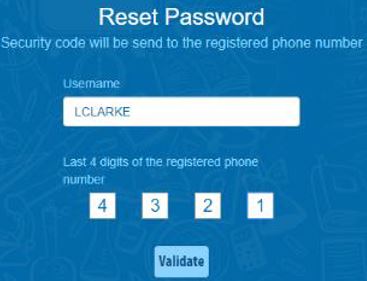
- Type in your username
- Type the last 4 digits of your phone number on which you received the school text message
- Click ‘Validate’
You will then receive a text message containing the verification code. This SMS might take a minute or two to be sent.
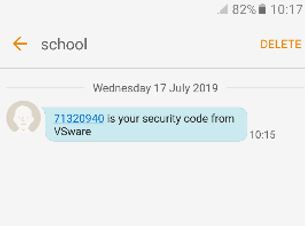
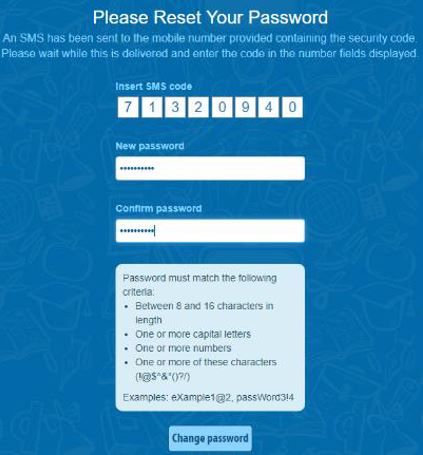
Enter this code, type your new password into the ‘New password’ and ‘Confirm password’ fields. Make sure that your password follows the criteria listed. Your new password must be between 8 and 16 characters. It must include one capital letter, one number and one specified symbol.
Click Change password
You will see a message confirming that your password has been successfully updated. Once you see this click ‘ Go To Login’

This brings you back to the main Login screen. Type your username, your new password and click ‘Sign In’. This is your new password going forward.
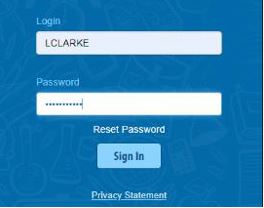
Please store/record your Username and Password carefully. In keeping with GDPR regulations, the school does not have access to your password
